This guide will walk you through the basic steps on how to use the Build Your Form in the Form Builder.
The Drag and Drop components are fields that are used in the form - these components allow you to easily add, arrange, and configure form fields without writing code.
STEP-BY-STEP
-
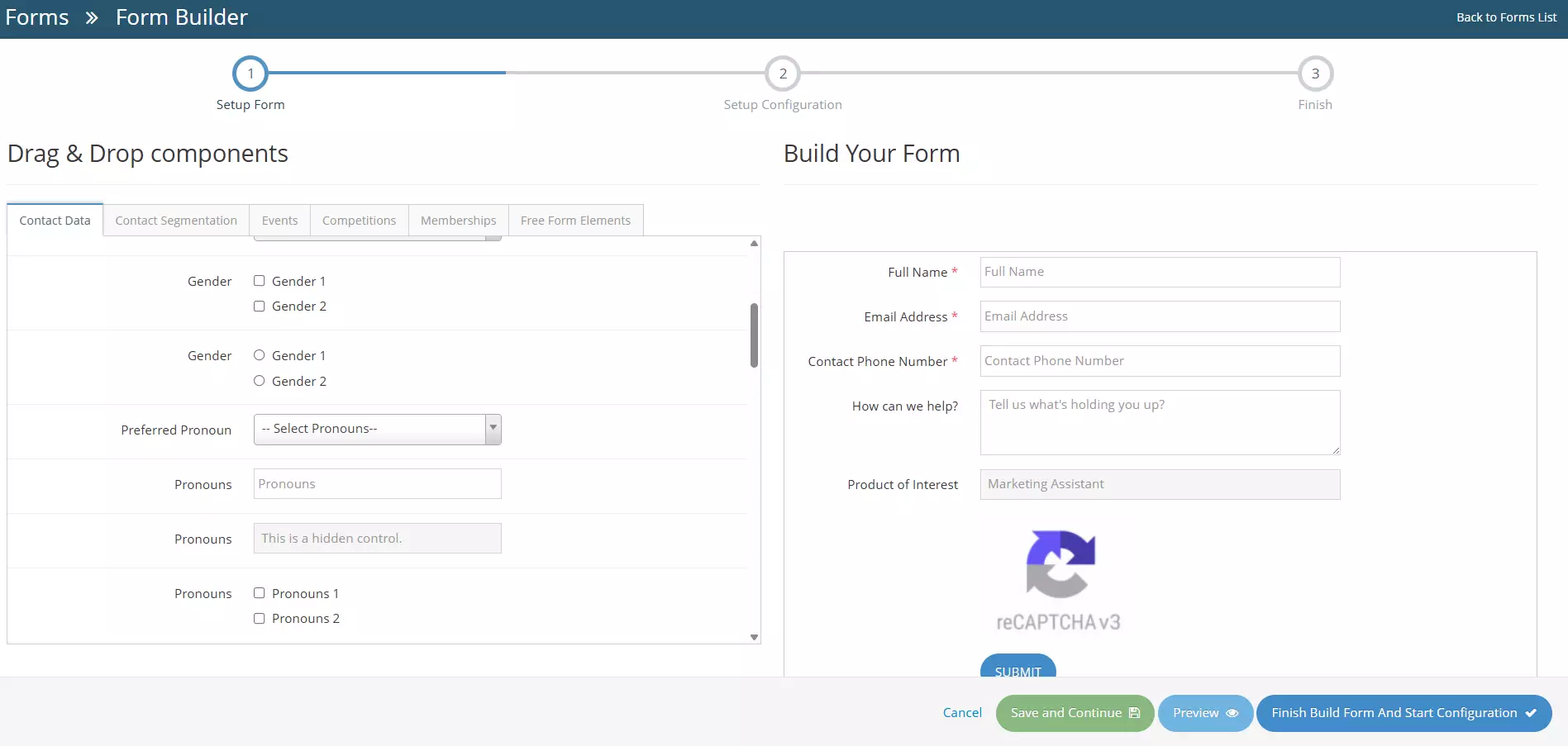
1When creating or editing a form, the user will be redirected to the Form Builder
-
2There are two (2) sections - the Build Your Form and the Drag and Drop Components, in this guide, you will learn the basics and necessary steps in using the Build Your Form section
-
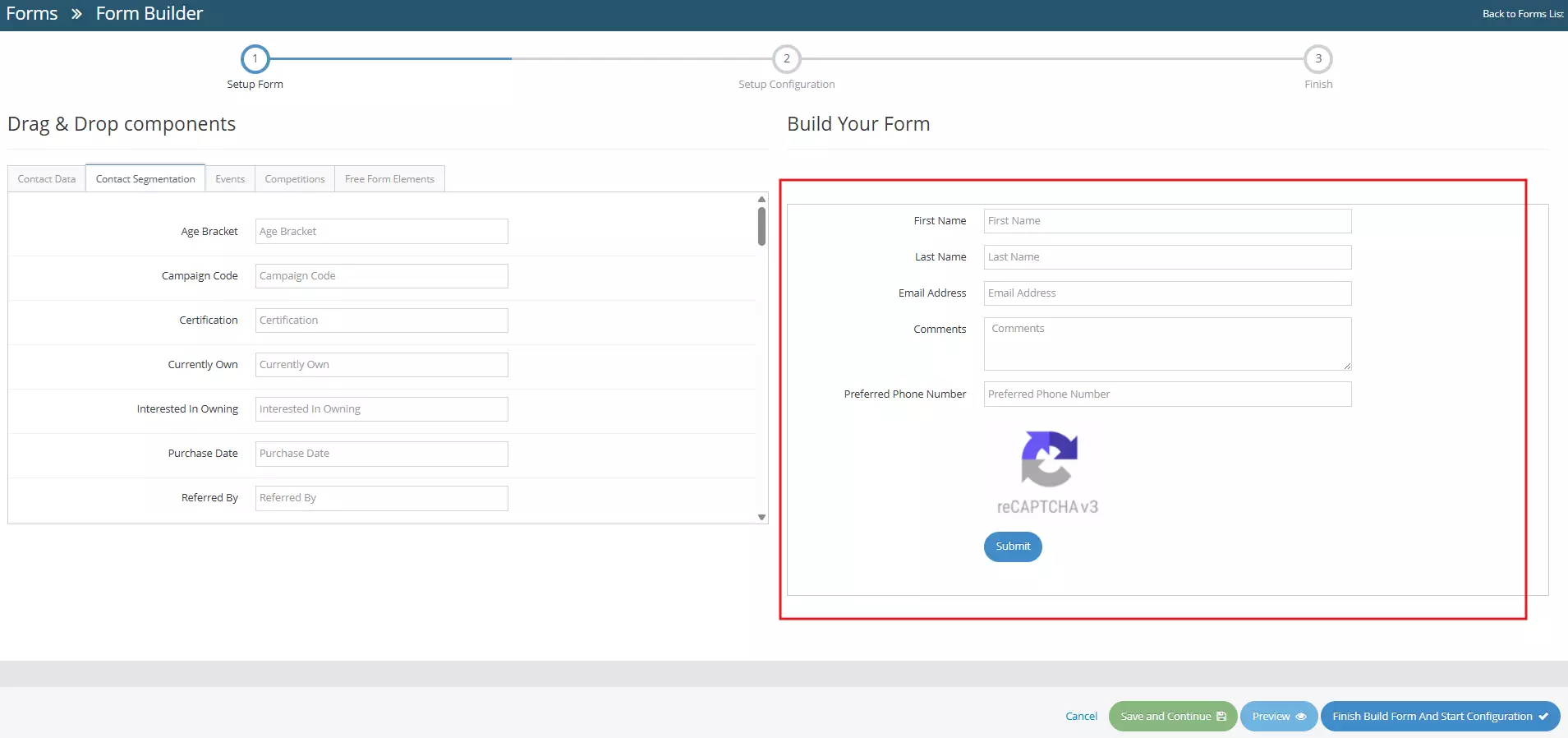
3On the right side, you can see the Build Your Form section, this section contains default fields upon creation.Default fields:
- First Name
- Last Name
- Email Address
- Comments
- Preferred Phone number
- Recaptcha
- Submit button
-
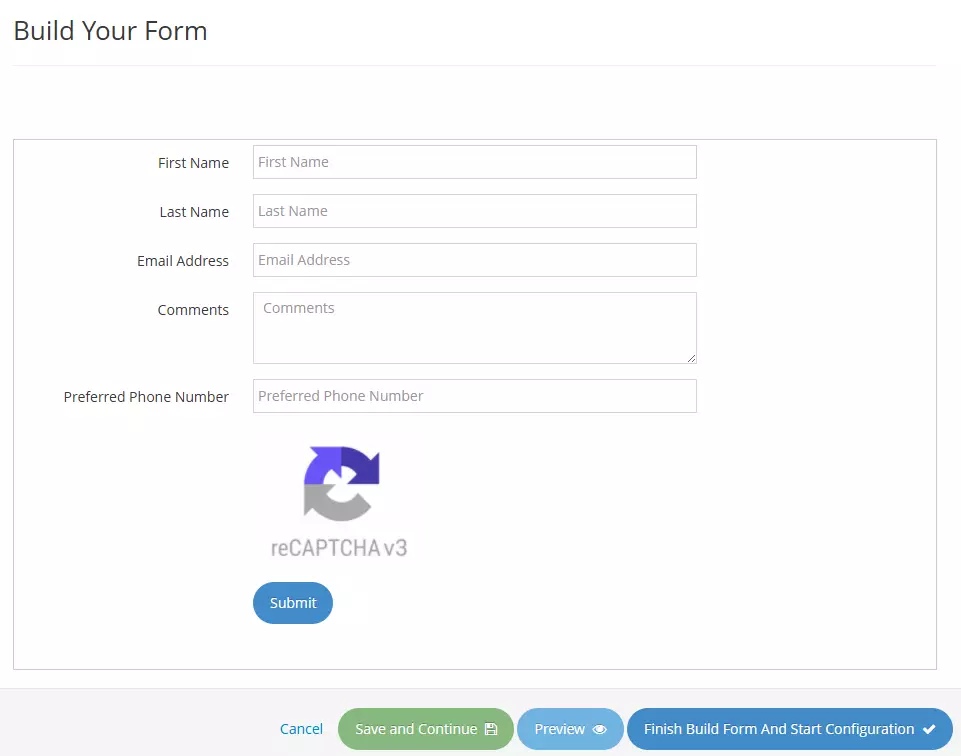
4You can edit this default fields or add new fields in the Build Your Form section
-
5
-
Once you're satisfied with the form you've created, you can Save and Continue, Preview or Finish Build Form and Start Configuration. The buttons are located in the lower-right section
- Cancel - cancel changes, user will be redirected to the Forms Management page.
- Save and Continue - saves the changes made, user will stay in the Form Builder page.
- Preview - redirects to the Form Preview page.
- Finish Build Form and Start Configuration - User will be redirected to the form configuration page. Learn how to configure your form here →
